
Login
How to Login to eSchool Mobile App
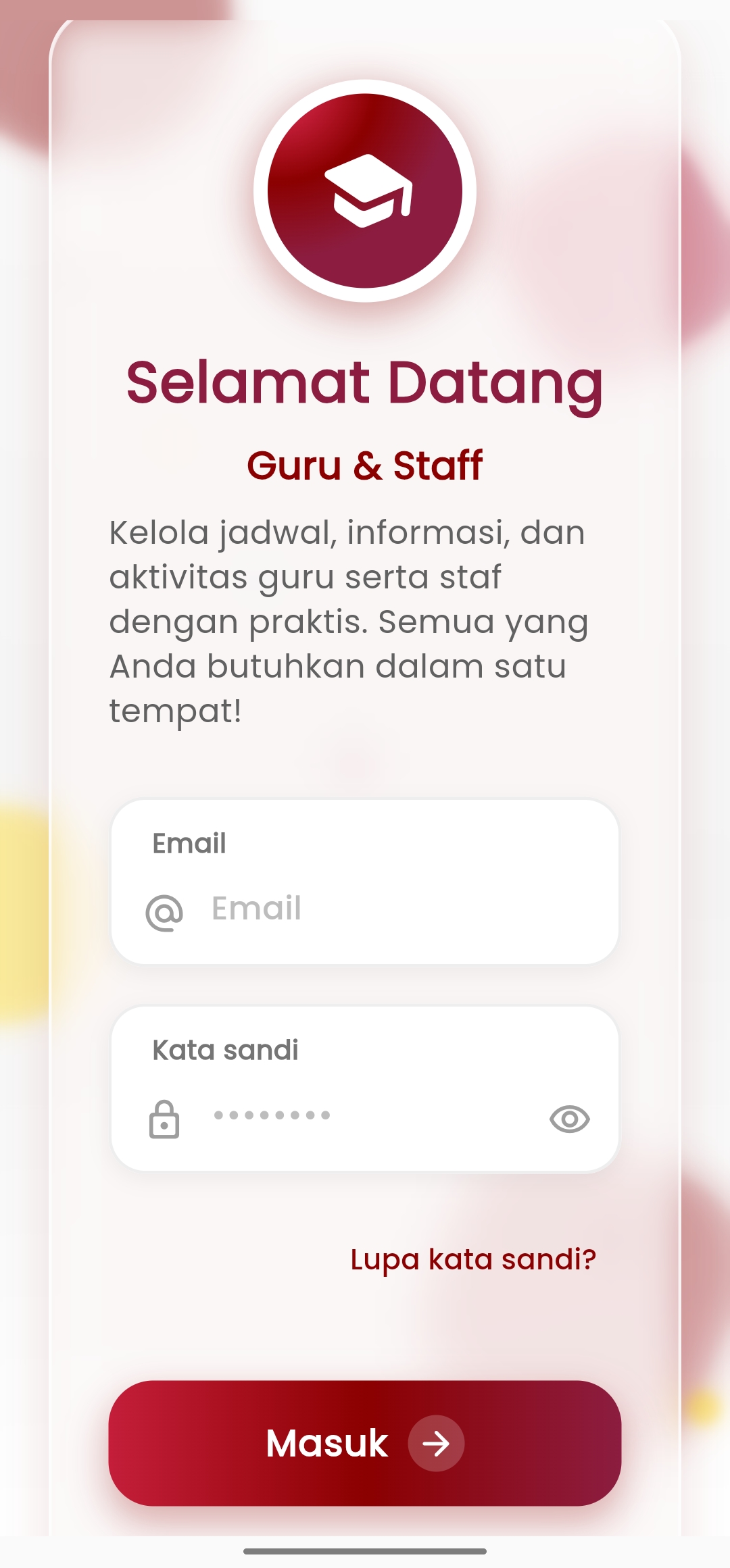
To use the eSchool Mobile application, make sure you have an official account registered by the school or eSchool admin.
1. Download Application
Download the eSchool Mobile application via:
- Google Play Store for Android devices
- Apple App Store for iOS devices
Search with the keyword: "eSchool Mobile"
2. Login with Official Account
After the application is installed:
- Open the eSchool Mobile application
- Press the "Login" button on the home page
- Enter the username and password you received from the school
- If this is your first login, you may be asked to:
- Change password
- Verify identity or basic account data
Login accounts can only be used if they have been activated by the school admin or eSchool operator.
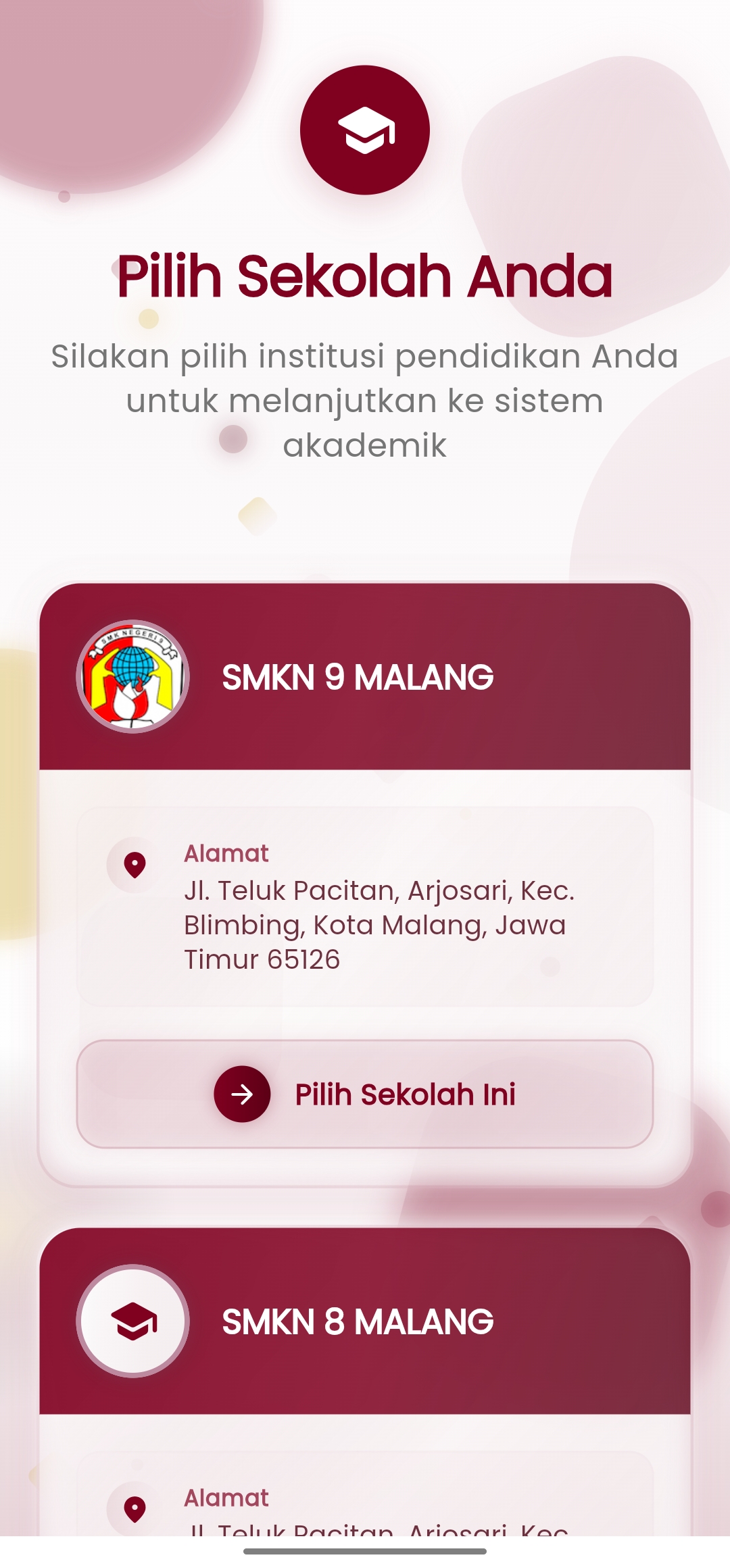
3. Choose Your School
If your account is connected to more than one school (e.g. as a parent with children in several schools, or a teacher with more than one assignment), then after logging in you will see the "Select School" page.
- Select the name of the school you want to access right now
- You can switch schools at any time via the profile or settings menu
- Make sure you select the appropriate school to view the correct data, classes, and activities
Login Problems?
If you experience problems logging in, here are the steps you can take:
- Forgot Password?
Use the "Forgot Password" feature on the application login page.
Follow the reset instructions that will be sent via the registered email. - Cannot Access Account?
Contact directly:- School Admin (to check your account status)
- Or contact eSchool Support Team via the Help menu