
Extracurricular
The Extracurricular feature in this application provides ease of management for non-academic activities. School admins can manage activity administration ranging from schedules and student registration to attendance recapitulation.
Main Features
-
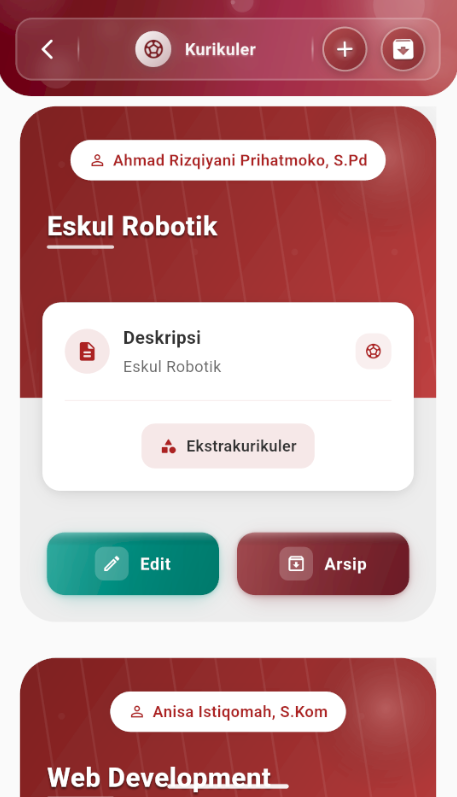
Manage Extracurriculars
This menu is the data hub for all school extracurricular activities.
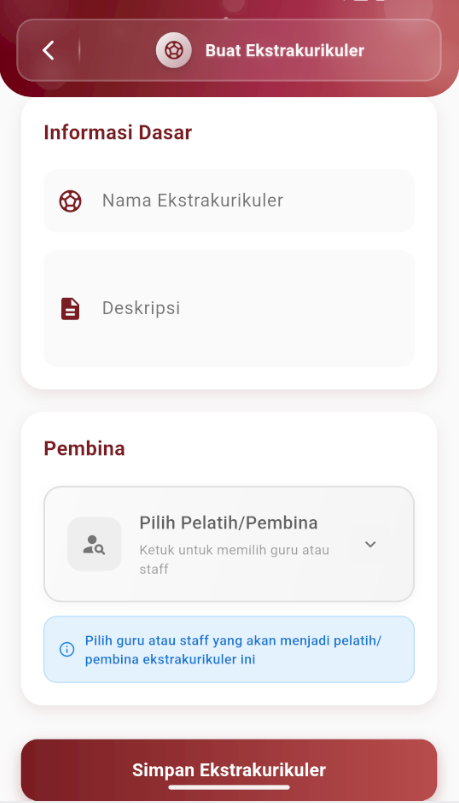
Adding New Extracurriculars
- Tap the + (Add) button in the bottom right corner or the add button in the top right corner of the screen.
- Enter the Extracurricular Name (e.g., Futsal, Scouts, Dance).
- Enter a brief Description of the activity.
- In the Supervisor section, staff can select a teacher or other person in charge of the activity.
- Tap the Save button to complete the creation.
Editing & Deleting
- Edit: Tap on one of the extracurricular cards, then select the Edit option to change data.
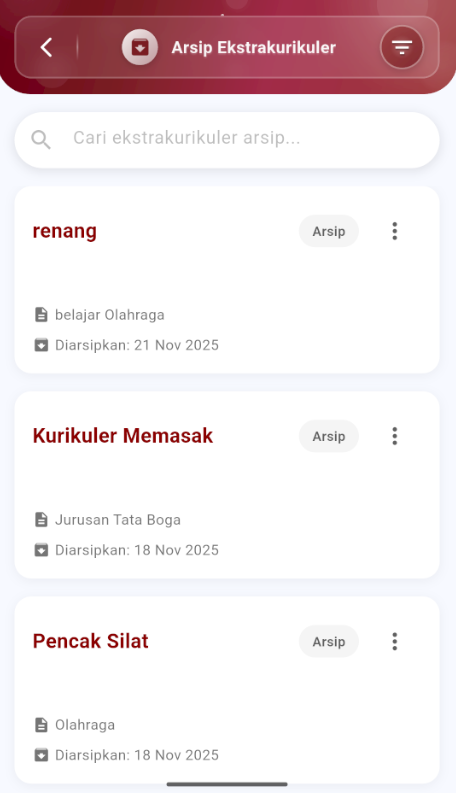
- Archive (Temporary Delete): Swipe or select the delete option to deactivate extracurriculars that are no longer active.
-
Extracurricular Schedule
This menu functions to set the activity schedule so it appears in the student application.
Viewing the Schedule
On this page, you will see day tabs (Monday, Tuesday, etc.) at the bottom. Tap on a day to view the activity schedule for that day.
Adding a New Schedule
- Tap the + (Add) button.
- Select the Extracurricular you want to schedule.
- Specify the Day, Start Time, and End Time.
- Save the schedule.
-
Member List (Registration Validation)
Students who register through their application will enter this list with a "Pending" status (Waiting for Approval). Staff are responsible for verifying these registrations.
How to Approve/Reject Applicants
- Open the Member List menu.
- Use the Filter feature (funnel icon) to display only students with a "Waiting for Approval" status.
- Tap on the student's name card. A confirmation dialog will appear.
- Select Approve to accept the student, or Reject if they do not meet the requirements.
Info: Students who have not been approved will not be able to see the full schedule or perform attendance.
-
Extracurricular Attendance
This feature is used during the activity to record student attendance.
How to Record Attendance
- Open the Extracurricular Attendance menu.
- Select the Date of the activity (defaults to today).
- Select the Extracurricular currently in progress. A list of official student members will appear.
- Mark each student's attendance status:
- Present (green check icon)
- Sick (thermometer/medical icon)
- Permission (letter/document icon)
- Absent (red cross icon)
- Once finished, tap the Save Attendance button.
Important: Ensure attendance data is entered correctly as it will be saved in the student's attendance record.