
Change Password
Enhance Your Account Security with a Stronger, Encrypted Password
The Change Password menu is set up to make it easy for users to update their login credentials securely and intuitively. With a user-friendly interface and an interactive password strength indicator, users can ensure their account protection remains optimal.
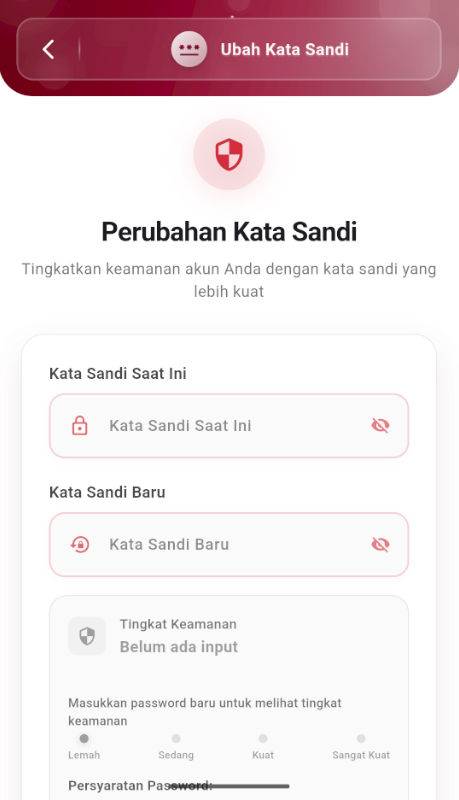
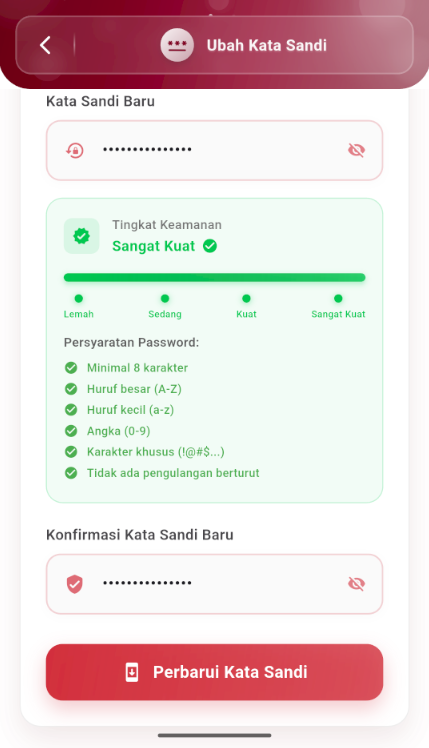
-
Real-Time Security Indicator
As the user types a new password, the system automatically assesses its strength level through a gradual indicator:
- Weak
- Medium
- Strong
- Very Strong
This helps users understand how strong the password they created is before confirming it.
-
Password Requirements
To maintain security, the system only accepts passwords that meet the following criteria:
- Minimum 8 characters
- Contains uppercase letters (A–Z)
- Contains lowercase letters (a–z)
- Contains numbers (0–9)
- Contains special characters (!@#$%^&)
- No consecutive repeating characters
These criteria are displayed visually and will be automatically checked when met.
-
Password Confirmation Form
After entering a new password, users are required to re-enter it in the confirm password field. This prevents typos that could hinder account access.
-
Validation and Save Process
Action buttons like "Complete All Fields" will remain inactive until all requirements and entries are valid. Once everything is met, users can immediately save the changes and update their password.
-
Privacy Protection
To ensure additional security, the password field is hidden by default. Users can display characters if needed using the eye view icon.
If you need further assistance, contact us through the eSchool Help Page.