
Add Exam Questions
Select, Browse, and Insert Questions Quickly from the Integrated Question Bank
The Add Online Exam Questions menu provides ease for educators in compiling exam questions quickly and flexibly. With a dynamic and accessible interface design, you can directly select questions from the existing question bank without needing to recreate them from scratch.

Steps to Add Questions
-
Enter Question List
View the list of all questions that have been added to the exam. You can monitor the number of questions, question types, points, and versions in detail in a single view.
-
Select Question Bank
Access various categories of question banks you own, such as:
- Essay Questions
- Multiple Choice
- True/False
- Short Answer
- Numeric
Each category displays the number of available questions, making it easier for you to choose relevant banks.
-
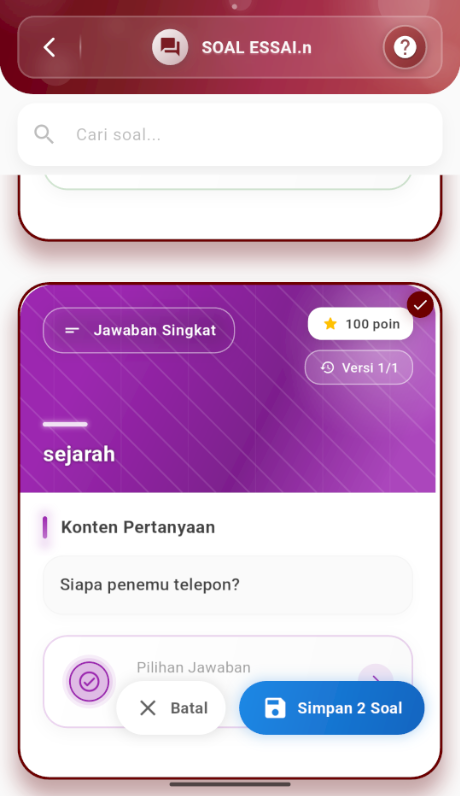
Browse & Select Questions
Enter the selected question bank and:
- Use the search feature to find specific questions.
- Press directly on a question to select it and view its full content.
- Slide sideways to browse previous question versions and compare content.
- Check point weights and question types before adding.
-
Confirm & Save Questions
Once questions are selected:
- Press the "Save X Questions" button to insert the questions into the online exam.
- You can add multiple types of questions into one exam to increase assessment variety.
This feature is designed to help teachers compile exams efficiently, structurally, and with rich variety—providing a fair and comprehensive assessment experience for students.
If you need further assistance, contact us through the eSchool Help Page.